YOUTUBE VIDEO
youtube.com/watch?v=…
▶
Your next great clipStarts with a video you love.
01
Drop in your video.
Paste a YouTube link. Choose your clip length, layout, and caption style.
 ClipKingDownload
✦ CHAT TO CLIP. YOUR WORDS, YOUR MOMENT.
Remember a great moment? Tell Chat to clip what was said. ClipKing finds it in your YouTube video and turns it into a captioned clip.
macOS 14+ · Development build · Setup instructions
Chat to clip Preview“You don’t need to have it all figured out. You just need to start.”
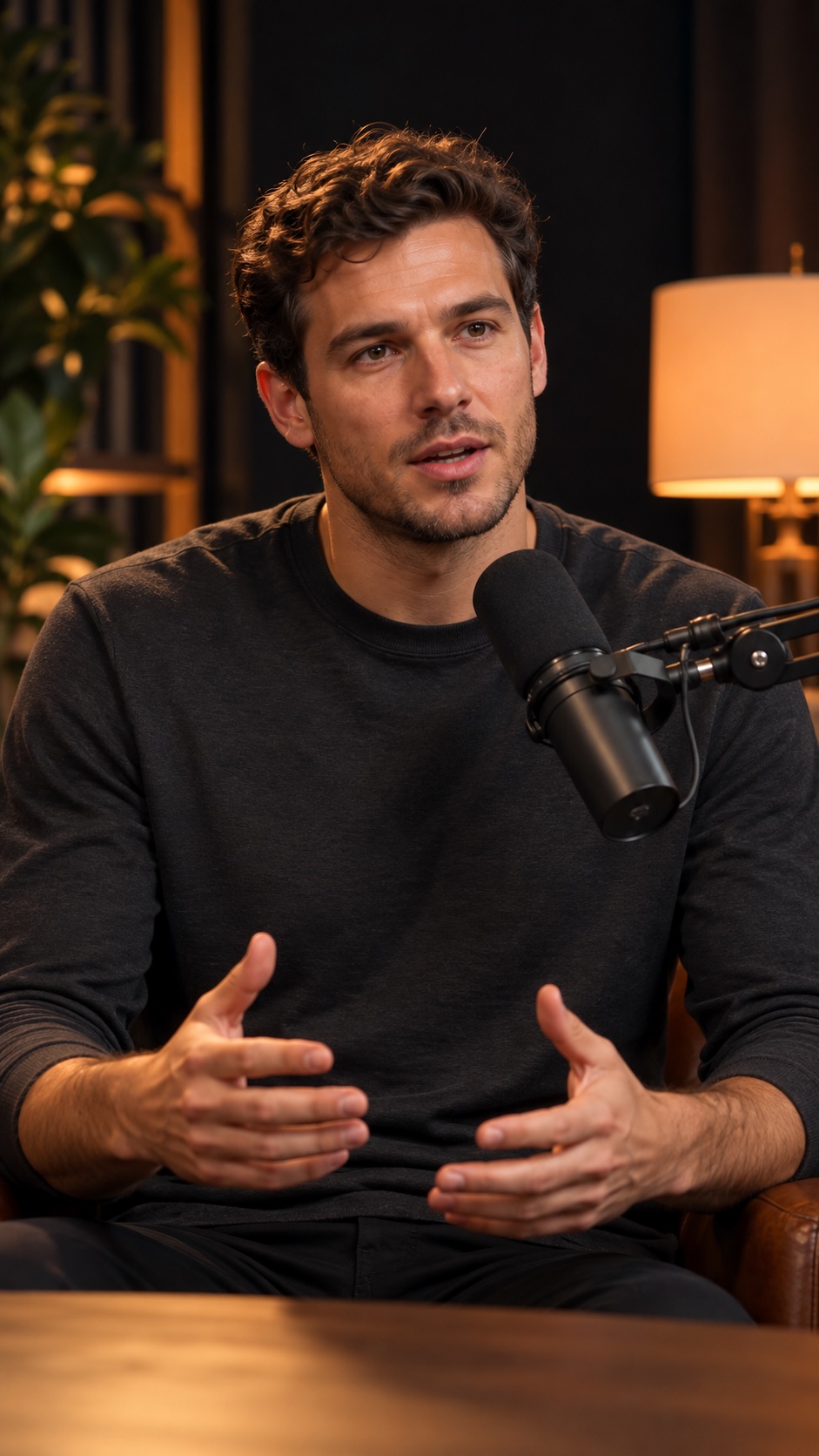
Illustrative examples. This preview doesn’t process videos.
A little look inside. Tap a clip to explore the preview.
FROM LONG-FORM TO YOUR NEXT POST
Less time on the timeline. More time making things.
Paste a YouTube link. Choose your clip length, layout, and caption style.
Use AI-assisted highlights, or describe the statement you want with Chat to clip.
Requires an available AI provider.Your moment.mp49:16 · Captions included✓Preview with sound inside ClipKing, then copy or drag your MP4 into your next post.
THE LITTLE THINGS, TAKEN CARE OF
Burned-in, word-by-word captions keep your story readable. Choose a style that feels like you.
9:16Keep the full picture with a blurred background, or crop to a full-screen vertical view.
Built with SwiftUI. Native playback, familiar shortcuts, and files you can drag straight out.
Clips and job history stay in your chosen folder. Come back to a video whenever inspiration hits.
Switch instantly between English and Estonian with the globe menu in the app.
A FEW GOOD QUESTIONS
ClipKing is a native Mac app that turns YouTube videos into vertical MP4 clips with burned-in captions. You can pick the clip settings, watch your results inside the app, and copy or drag out the files.
Yes. Download the current development build from this page, open the DMG, and drag ClipKing into Applications. Read the setup instructions below before your first run. The app is locally signed and not notarized, so macOS may block opening it.
Paste a YouTube link and describe a statement or topic. ClipKing searches the transcript for a matching moment and creates a clip. It reports when no matching statement is found.
The app exports vertical 1080 × 1920 MP4 files, suitable for uploading to YouTube Shorts, Instagram Reels, or TikTok. ClipKing doesn’t post to these services automatically. Use videos you own or have permission to repurpose.
Rendering and clip storage happen on your Mac. YouTube videos are downloaded from YouTube. AI-assisted selection and translation use your configured AI provider, so relevant transcript text may be sent to that provider.
The development build targets macOS 14 or later, on Apple silicon or Intel. It currently requires a few video-processing tools to be installed. See the setup instructions below for the required tools.
The development build is available to download here at no charge. AI features use your own configured provider, whose subscription or usage costs may apply. Future pricing hasn’t been announced.
THE NEXT GREAT CLIP IS ALREADY IN THERE.
Try ClipKing on your Mac.
More features are on the way.
brew install python yt-dlp ffmpeg-fullVideos without subtitles also need faster-whisper installed for the Python interpreter shown in Settings.
This is a locally signed development build, not a notarized release. macOS may block opening it. Clips are stored locally in your chosen output folder.